Favorite tools: Search and Replace April 20, 2011
Posted by Jill (@bonnjill) in Tech tips, Tools.2 comments
One of my German friends/colleagues complained on Facebook yesterday that she was proofreading files and the translator had changed Vereinigtes Königreich (United Kingdom) to Groß Britannien (Great Britain – but spelled wrong, because it should be Großbritannien). If it was just one file it wouldn’t have been a problem to correct it, but the problem here was that the translator had changed it in 148 separate files.
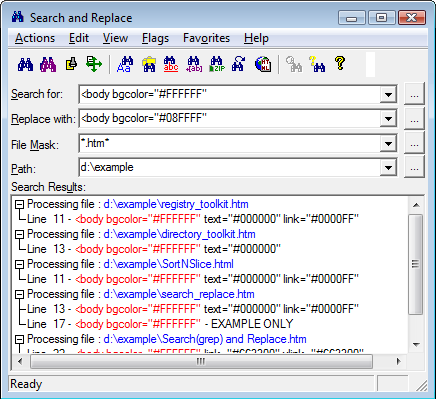
Screenshot taken from the Funduc website
There’s a shareware tool for that! Search and Replace by Funduc Software is a great little tool that can easily fix this problem. It “searches through one or more files files for a string and can also replace that ‘search hit’ with another string. It can even search for the string inside .ZIP files, which can be a handy feature to have. Search and Replace is also available in international versions. As they explain on the Funduc website, “Language interface downloads are available below for German, Danish, Dutch, French, Italian, Portuguese, and Spanish versions. Some older Japanese, Greek, Norwegian, and Swedish modules are also available.” You can also write support@funduc.com if you need an older language dll that is not listed. You simply install the English version and then add the language support files into the Search and Replace program directory.
This is a must-have tool for translators. I can’t tell you how many times I have relied on this tool. Search and Replace costs $25.00, Replace Studio Pro costs $30.00 and Replace Studio Business Edition costs $37.00. I have been perfectly happy with Search and Replace for years now. Windows XP, Windows 2003, Windows Vista, and Windows 7. 32-bit and x64 versions are available for all three tools.
Backing up your stuff to the cloud January 5, 2011
Posted by Jill (@bonnjill) in Business practices, Tech tips.8 comments
To quote Paul Appleyard, who inspired this post, “As translators, our professional life is on our computers and we should do everything we can to protect it.” This tweet was part of a Twitter discussion on backing up data and backing up to the cloud.
For those of you who are unaware what “the cloud” is, as Wikipedia explains, “the term ‘cloud’ is used as a metaphor for the Internet, based on the cloud drawing used in the past to represent the telephone network, and later to depict the Internet in computer network diagrams as an abstraction of the underlying infrastructure it represents. … The fundamental concept of cloud computing is that the computing is “in the cloud” i.e. that the processing (and the related data) is not in a specified, known or static place(s).” So when you back up your data to the cloud you are basically uploading your data to Internet servers and can access the data from anywhere.
For example, I use Google Calendar to keep track of my appointments and social events. I can access this calendar from my computer, my new Android phone or any other computer such as one at a friend’s or my parents’ house, because the data is stored in the cloud. It is a good idea to regularly back up this information, so I semi-regularly sync the calendar to my PalmPilot, which I hook up to my computer.
Computers crash – usually at the most inopportune moment – so backing up your data is a very good idea in and of itself. Backing up to the cloud is a good idea in case of a fire, flood or theft, which would affect your external hard drives or computers and therefore your data.
When you back up your data to the cloud it is a good idea to use a fee-based service such as Carbonite or Mozy that uses secure services. If you are unsure which one to use, PC Mag published an overview of what they consider to be The Best Online Backup Services. Don’t forget that these fees are a business expense and should be noted as such when you do your taxes. This is not the place to be cheap or frugal. Choose the service that best suits your needs and cough up the money, because your business and livelihood depend on it.
However, there are other factors you need to take into consideration when deciding which service to use. Michael Wahlster posted an interested take on backing up to the cloud in his recent post entitled Vulnerable to the Whims of Big Companies. He stresses that it is important to also back up to a tangible external hard drive or other medium, because by backing up your data to the cloud you are vulnerable to the whims of big companies: they go bankrupt, they disappear, they merge with other companies, etc. Michael discusses this issue in great depth, and it is well-worth reading his post as well as the articles he has linked to about the perils and risks involved with backing up to the cloud.
So in summary, it is very important to use a two-pronged approach when backing up your data. Backing up to the cloud is a great idea and allows you to access your files and information from anywhere, but backing up to an external hard drive, server or other physical medium is also important. In my case, I have an external hard drive and also use Carbonite to back up my computer. Paul suggests an online data backup service called CrashPlan. Whatever service you decide to use, start using it today.
I use a free service called Dropbox to move files from my computer to my laptop (no more burning CDs or using USB drives with multiple copy and paste sessions because I ran out of storage space on the CD or USB drive!), but I never considered keeping my important files on Dropbox too. Thanks to Paul and the discussion on Twitter, that has changed.
Last but not least, here is one thing I bet you have never thought about backing up — your bookmarks! I have spent years compiling my bookmarks, and I would be lost trying to recreate them if something were to happen. Plus, it is nice to have the same bookmarks on all my computers. A tool like Xmarks is a lifesaver in this case. I first learned about it as a FireFox add-on, but it is compatible with IE, FireFox, Chrome and Safari. The company was recently bought by LastPass and is now offering a Premium service to back up your bookmarks to the cloud as well as sync with smartphones like iPhone, Android, Blackberry, etc. You can bet I was one of the first ones to buy it when it was announced a couple weeks ago.
If you can recommend a service I’m sure everyone would love to hear about it in the comments.
Presentation from ATA conference November 5, 2009
Posted by Jill (@bonnjill) in ATA, Tech tips.1 comment so far
One astute attendee of my presentation at the ATA conference has pointed out that my presentation is not viewable to those of you who are not yet on LinkedIn. I have agreed to post it here as well. Most of the actual presentation was working in the actual programs, but this should give you a vague idea of what we covered. I have tried to embed the PPT presentation here in WordPress, but I simply don’t have the time to mess with it and get all the kinks out. I promise to embed more of my presentations here in the future.
Trados just keeps drivin’ ’em away June 26, 2009
Posted by Jill (@bonnjill) in Business practices, Tech tips, Tools.28 comments
Trados used to be the 800-pound gorilla in the translation industry. They did a good job, and their customers were loyal. Due to a series of missteps and bad judgment I have a feeling that won’t be the case for much longer.
The original title of this post was going to be “Trados Studio 2009, you can kiss my…” but I didn’t want to offend anyone’s delicate sensibilities. SDL Trados released Studio 2009 a little while ago, and it was a mess. Let me just tell you – there were and are a lot of angry translators out there. Sure, translators enjoy complaining about Trados (always have, always will), but this time it’s different.
The first inkling many of us blog readers had that there was trouble ahead was Translation Tribulations’ post SDL Trados Studio 2009 BOHICA. Now the product is out, and he is uncannily correct in his prediction – BOHICA! Many of the translators who bought the product are regretting their decision and want to switch back to their old version – but then you are out the money. It really isn’t worth trying to contact Trados Support since they are unresponsive – probably because they have been deluged by complaints.
The reasons for the freelance backlash are two-fold: functionality (or lack thereof) and licenses. Studio 2009 has placed more importance on project management than on translation – which is the reason Trados was developed in the first place. Your lone wolf translator does not need project management functions. Susanne III pointed out that as a beta tester she informed SDL Trados several times that this new version was developed without considering the needs of the freelance translator who would actually be using the product. For example, apparently Studio 2009 doesn’t allow uncleaned files.
The main reason for the ATA’s German Language Division list boycott discussion was the realization that SDL Trados appeared to have gotten too big for its britches and was no longer going to allow freelancers to use the product on more than one computer with the simple freelance version – and forcing them to sign a letter confirming they will not be getting a second license in the future. I for one work on my home computer, but use a laptop when I’m traveling or out of the office. This one-license policy would not allow me to install Trados on my laptop. And heaven forbid you should buy a new computer and want to install your existing Trados license on your new computer. Nope, sorry, you’re out of luck without signing your life away. The only other alternative is to buy a multi-license version, which is something like €435 ($600). I don’t know about you, but $600 a year (if the license is only good for a year) is a lot of money for most freelance translators.
Installing the new product can apparently be a total nightmare due to licensing questions. There are reports that it has taken some colleagues three to four days to get their systems back in working order (nevermind the lost wages). One very well-respected colleague on TW_Users reported he was giving up trying to install the product “[a]fter hours reading information, returning licenses, installing, uninstalling and reinstalling software, rebooting, swearing in several languages, I give up. Honestly, there is a limit to everything—including my recklessness—and all I achieved is to have my old Trados back working—for a limited time, now, of course.” He published an article on his adventures in this month’s Accurapid Journal.
According to the SDL Trados website, “When upgrading to SDL Trados Studio 2009, you will need to de-activate your previous software license. Also note that SDL Trados 2007 Suite is included as part of SDL Trados Studio 2009. It will be fully functional until 30/06/2010. It is possible to install both products in parallel. If you would like to retain your previous license, you could consider purchasing a full new license.” Imagine that – spend lots of money on a piece of software that is only good for one year, because newer products now come with expiration dates. No thanks. SDL Trados soon changed their tune and allowed two licenses to work at the same time to quell the uprising.
Paul Filkin, Client Services Director at SDL Trados, wrote to the TW_Users group and tried to explain the theory behind SDL Trados’ decision:
On the “now” old SDL Trados 2007 Suite and earlier you purchase a single activation. In case you had problems, such as Hurricane Isobel, or someone stole your laptop when you nipped into MacDonalds [sic], or you simply forgot to return it before you rebuilt your machine, we actually allowed for two additional activations before your activation was prevented. The reason we put a limit on this is obvious because we have to be able to prevent misuse of the activation utility which some less honest people would take advantage of.
It is often the case that some users seem to rebuild their machines more than others, and sometimes forget to return their license everytime they do it. This is quite easy, I have done it myself. But we still have to draw the line somewhere. When this happens you are asked to jump through a few hoops to verify your entitlement to our satisfaction and I think this is perfectly acceptable.
On the new SDL Trados Studio 2009 software we have taken a different approach. You can now purchase additional activation codes for the Freelance software for a small amount so that you can legally run the different versions on your laptop and your desktop at the same time and have them both activated at all times.
This will not prevent the McDonalds scenario from being a problem, and you will still have to jump through a few hoops if you lose the ability to return your license and need Support to reactivate it for you. But it will give you the ability to have more flexibility in how you work.
Again, I don’t know about you, but I don’t know too many companies that assume from the get-go that their loyal customers are constantly trying to pull one over on them. OK, maybe Microsoft, but there are indeed a lot of pirated copies of their software floating around. I don’t know a single translator working with a pirated copy of a TEnT (translation environment tool).
Now one of the GLD members, who has had a service contract with them for many years now, reports that upgrading to Studio 2009 is a prerequisite for having a support contract anymore. They will not be offering any support – not even paid support – if you aren’t willing to upgrade to Studio 2009.
It has become apparent to most translators that Trados is no longer interested in the lowly freelance translator. They want to sell their product to agencies. But the best product in the world won’t be any use to agencies if their freelancers are still working with the old versions or have switched to another TEnT altogether.
Hey, Trados, you might want to send your employees to a class on how to provide good customer service. Instead of always blaming the customer (who, incidentally, is paying your salary by buying your product) why don’t you try to find a solution that satisfies everyone. If Trados had just decided “”Please note that this new version of Trados can run side-by-side with previous versions of Trados.” I don’t think there would have been this much uproar.
I for one am sticking with my current version (Trados 2007 Freelance) for now, because it doesn’t have an expiration date and still works fine. I’ve been with Trados since Version 2.x and have taught other translators how to use Trados in seminars and in the translation grad courses at Kent State University over the years. I was definitely a loyal customer and even a fan. Not anymore. If the time comes that I need to upgrade to something else (because I have bought a new computer or something) I will be switching to a competitor. I hear Wordfast and MemoQ are good products…
If anyone else is considering switching to a new TEnT, you might want to check out Jost Zetzsche’s site, Translators Training. You can “access video-based tutorials for all the major translation technology and localization tools and much more for only Euro 34.99 a year.” That’s a heck of a lot cheaper than shelling out several hundred dollars for a tool that you decide you don’t like.
Favorite tools: Firefox March 12, 2009
Posted by Jill (@bonnjill) in Tech tips, Tools.6 comments
Next to Trados and WinAlign, my favorite tool is without a doubt Firefox. I have Firefox running from the moment I wake up to the minute I go to sleep. Firefox is a free open source browser that offers a “faster, more secure, and fully customizable way to to surf the Web.” As you can see from my screenshot I have put a lot of time and effort into customizing my browser to make it work for me. My homepage is my iGoogle page, which I have talked about in detail on this blog several times. I have TwitterFox running in the bottom right-hand corner (I expanded it for the screenshot), and I can access it whenever I want to check out the Twitter tweets from the folks who I am following. I follow a variety of people, but they are primarily translators located all over the world who often offer really good information. I also have numerous tabs open at all times and toggle quickly between them as needed.
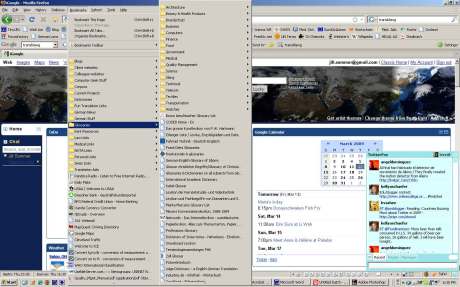
As far as organization is concerned, I now have two toolbars of my most frequently visited sites (thanks to a tip from one of my blog readers – thanks, Maxim!) such as my blog, online dictionaries, the Translator’s Home Companion portal, the Accurapid Translation Journal, Frank Dietz’ and Marita Marcano’s collection of glossaries, etc. as well as a very organized Bookmarks drop-down menu. I have the drop-down menu organized into folders and subfolders, which allow me to quickly and easily access subject-specific glossaries, dictionaries, traffic watches, Pandora Radio, Oanda (a really great currency exchange site), my bank accounts, my public library, conversion tools, etc. I have folders for blogs (from before I started using a feed reader – come to think of it I can probably delete the folder now…), client websites (for logging onto workspaces and managing translation jobs), colleague websites, translation aids (such as style guides, translation portals, payment practices sites, etc.), etc. One of my friends commented that they would love to get their hands on my Bookmarks, but this represents over 10 years of collecting and maintaining URLs. I consider it to be proprietary information just like my TMs are. 🙂
Do you have any Firefox tips you would like to share with us? Tell us about them in the Comments!
Firefox speed-up tip from Jost March 6, 2009
Posted by Jill (@bonnjill) in Tech tips.2 comments
If you don’t subscribe to Jost Zetzsche’s biweekly Tool Kit newsletter, you probably missed this excellent tip in his latest edition, which just went out last night. If you don’t subscribe to this helpful newsletter written for translators by a translator, you really should. He talks about all kinds of important topics and offers lots of valuable tips. He has introduced me to numerous tools that make life as a translator easier. You can subscribe by clicking on this link. The Standard edition is free (with limited content), but the Premium edition is only $15 a year and so worth it. Go subscribe now!
Firefox Speed-Up
I recently complained about the increasing sluggishness of Firefox with an ever-larger number of plug-ins. Dominik Kreuzer reminded me that this might be due to the “automatic updating of installed add-ons enabled — that slows down the program start a lot.” And he was right on.
I had to look a little, but I eventually found the option to disable the automatic update under Tools> Options> Update. This was a much-appreciated tip and a good recommendation if you have lots of little add-ons in Firefox that make it ever-slower to open your browser.
I immediately changed the setting in Firefox and immediately noticed a difference in speed. Thanks, Jost!
Applications I can’t live without March 5, 2009
Posted by Jill (@bonnjill) in Tech tips, Tools.9 comments
1. Trados
Translating with Trados (or any translation environment tool – TEnT) makes life a lot easier. It allows me to quickly look up terms (in MultiTerm or using the Concordance function) and easily align previous translations and feed my translation memory, which makes my life a lot easier in the long run. It also ensures that I don’t accidentally skip a sentence or a paragraph, because the tool treats every sentence as a separate translation unit. I have numerous TMs (translation memories) set up for the various fields I work in or for specific clients. This ensures there is no cross-contamination. However, I know several translators who simply work with one large TM and specify the fields in the project field. If you would like to learn more about the various TEnTs and take them for a test drive, be sure to check out Jost Zetzsche’s Translators Training site.
2. Microsoft Word
Although I also own WordPerfect, 99.9% of my translations are delivered as Word .doc files. I have become adept at tweaking formatting and playing with the ruler to set tabs and line up margins. Translators simply need to delve into the inner workings of Word in order to deliver the best possible translation to their client. Take it from me, clients notice when you deliver a translation that closely matches the formatting of the original. And a happy client means a return client.
I own a lot of dictionaries, but the ones I find myself using the most are electronic dictionaries. I have two electronic dictionary interfaces that I use — the Langenscheidt dictionary interface and UniLex. It is so much quicker and easier to highlight a word in Word or on the Web and use a keyboard shortcut to paste it into an electronic dictionary interface. For more information on the German-English electronic dictionaries I use (and to view screenshots of them), click on the Electronic dictionaries header. I also rely on online dictionaries such as Pons (they also have French, Spanish, Italian, Polish, and Russian dictionaries available), the Pons Bildwörterbuch, Leo (also available in French, Spanish, Italian, and Chinese), dict.cc, LinguaDict, Grimms Wörterbuch, Wortschatz, Das digitale Wörterbuch der deutschen Sprache, and the EU’s multilingual terminology database IATE (formerly known as Eurodicautom).
 4. Skype
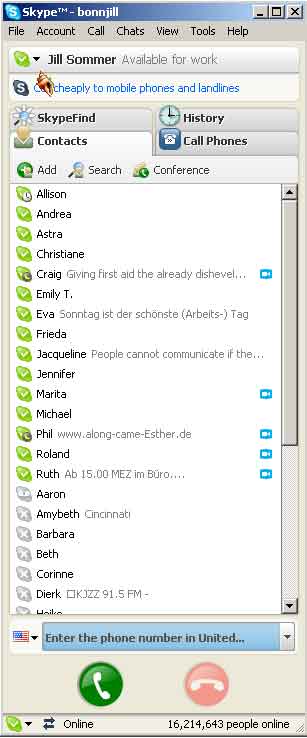
Skype has become an indispensable tool in my translator toolkit. I am connected to fellow translators and several of my project managers through Skype. If I have a sentence that is giving me trouble I simply copy and paste it into Skype’s chat window and discuss it with one of my colleagues. It also enables my project managers to instantly ask if I am available, receive an answer and assign the job to me. You can see the status of your contacts in the window and either call them (through headphones and/or video) or open a chat window. It also allows me to keep in touch with friends in Germany and my cousin in China.
Since I specialize in medical I receive a lot of my medical texts in PDF format. ABBYY FineReader allows me to scan the file and convert it into a format that can be read in Word using optical character recognition (OCR). This allows me to quickly translate medical invoices and the like using my medical TM. ABBYY is the clear favorite among translators (although PDF Transformer is a close second), because it creates fewer text boxes than other OCR programs. I also really like the spellcheck feature, which ensures the document I am working on doesn’t have any spelling errors that would corrupt my TM. Sometimes ABBYY has problems reading handwriting or working with fuzzy originals, and sometimes its formatting leaves a lot to be desired. In this case, I simply copy the text, paste it into a fresh Word document and format it by hand. For more information and to view screenshot, click here.
6. iGoogle
iGoogle is a personalized Google page. You can customize this page to have all your information at your fingertips, including news sources, weather, RSS feeds, and all kinds of neat Google gadgets that make your life easier. iGoogle allows me to keep up with the top headlines in numerous German, UK and U.S. newspapers, my Google feed reader, numerous miscellaneous websites, and my Gmail and Yahoo e-mail accounts all in one location. I have written about iGoogle before, but it deserves mention here again.
7. Firefox
I love Firefox. It allows me to easily manage my Bookmarks and gives me a very customizable toolbar for the sites I use most (like TinyURL, my Blog, a medical abbreviations site, the PONS dictionary, ReferenceDesk, the Roche medical dictionary, a button to add any product to my Amazon Wish List, etc.). I also love the Google toolbar, so I can quickly search Google without actually having to visit the Google homepage. I also think it loads faster than Internet Explorer or the old Netscape browser (R.I.P.). Firefox also seems to be less vulnerable to security breaches. If only I could figure out how to add a second toolbar for even more favorite sites…
8. PractiCount
PractiCount is my word count tool of choice. As many of you probably already know, Word does not count text in text boxes, headers, etc. and Trados does not count numbers as words. PractiCount allows me to count a variety of file types, including Word, Excel, PowerPoint, and HTML and XML files and adjust the settings as needed. It also allows you to count multiple files at once. In the old days we used to have to open each file, do a word count and add it up by hand (and double and triple check the total). PractiCount does this for us. If you like, you can also create an invoice directly in PractiCount based on the word or line counts (whichever you specify in the settings). For more information on word counts, read Word Count Issues – Part I and Word Count Issues – Part II.
9. Microsoft Money
Whether you use Quicken, Microsoft Money or another accounting tool, you need to use an accounting tool to keep track of income and expenses. I like Money’s feature of listing overdue invoices and how many days they are overdue. MS Money also makes tax time a breeze, because I input my business income and expenses throughout the year and can easily generate a report for my CPA at tax time.
10. Time Stamp
I charge by the hour for proofreading. Time Stamp is a great little donationware tool that allows me to track the time I spend proofreading a text, and I can pause it when I take a break and easily start it again when I get back to work. And I can save the report in my archived zip file in case the client ever questions my invoice.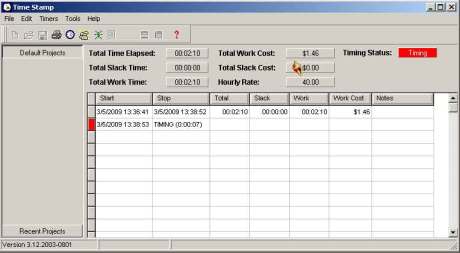
11. WordPress
It takes a special kind of person to be a blogger. You have to want to share your knowledge with others. Not everyone is willing to do that. I love blogging because it allows me to share my inane thoughts and all the tidbits I learned throughout the years with others – or even thoughts that are inspired by something I read. I used to send random thoughts and websites to the ATA GLD list, but my blog allows me to reach a wider audience. It is also a great marketing tool. Corinne from Thoughts on Translation advised me to use WordPress, and I have never regretted it. It is, by far, the most powerful blogging tool on the web today.
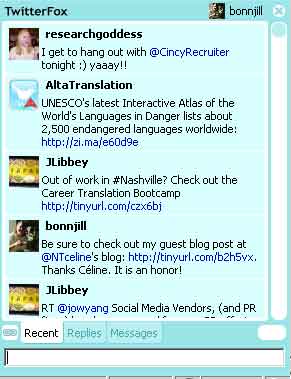 12. Twitter (and specifically TwitterFox)
I am still learning how to use Twitter, but it became much more enjoyable once I installed TwitterFox, a Firefox add-on that feeds in Tweets in real time from my browser. Since I have Firefox open just about all the time, it allows me to quickly catch up with my tweets and interact better with the people I am following. Any Twitter feed tool, such as TweetDeck, TweetLater or Tweetie (for iPhones and the iPod touch), will suffice. TweetDeck appears to be the odds-on favorite at the moment. I also feed my latest Twitter Tweet into my blog. For more information on Twitter tools and choosing the right tools for your needs, be sure to read The Twitter Toolbox.
13. Norton Ghost
Everyone should have a backup system. My backup system of choice is Norton Ghost. It runs scheduled backups of my most important files (My Documents, my TMs, my e-mail program, etc.) every night and backs up my entire system once a week onto an external hard drive.
14. Pandora Radio
Pandora allows me to stream music based on my interests in the background while I work. Depending on my mood, I can choose stations based on my favorite singers, such as Eva Cassidy (smooth folk music) or Michael Buble (swing music), or groups such as Ah Nee Mah, which features sounds of the Native Southwest within the context of mellow ambient atmospheres, or Evanescence, which is a bit more rocking. I’ve written about Pandora Radio here twice — in Music in the workplace and Pandora Radio itself.
15. Facebook
Facebook is a favorite for purely private use. It allows me to keep in touch with friends and reconnect with long-lost friends. I have been enjoying posting photos from my Academic Year Abroad year in Salzburg for my AYA friends and have made friends with the widow of a friend that year. That said, I am very picky about who I accept as friends, as I don’t want clients to have access to old photos of me or status updates (not that there is really anything incriminating out there). Facebook is a fairly open environment, so you never know when one of your friends might publish compromising information about you or make a comment that might embarrass you. Better to be safe than sorry. If I ignore your friend request please don’t take it personally.
What are your essential applications? Do you have a few applications that you couldn’t live without? Share your favorites with us in the comments.
Google Latitude: A monumentally bad idea? February 5, 2009
Posted by Jill (@bonnjill) in Tech tips.7 comments
The folks at Google have just announced a new tool called Google Latitude. Maybe it’s just me, but I think this is just a really bad idea. It uses GPS to allow you to track your friends’ locations – and could be used for nefarious purposes by stalkers and crazy exes.
From the Google RSS feed:
Gmail is about keeping you in touch with the people you care about, independent of the large, or sometimes small, distances that might separate you from them. That’s precisely why email, IM, and voice and video chat are so powerful — the “where” is irrelevant.
With Google Latitude, a new feature on Google Maps for mobile and a gadget for iGoogle coming out today, we’re kind of turning that idea on its head, making the “where” matter again. Latitude allows you to see where your friends are located in real time on a map, anywhere in the world.
Latitude is a free tool that works on smartphones and PCs. If they have Latitude installed, users can use GPS and Google Maps to track other friends who are using the service. The service is an opt-in service, so people have to sign up for Google Latitude to be tracked . They can also limited exactly who can track them, and where they can be tracked. I can just see someone not knowing how to turn it off once they try it – or sometime taking their phone and installing it without their knowledge.
So what do you think? Do you think you might have a need for a tool like this? I don’t have any crazed stalkers or exes, but I still won’t be using this. I and most Americans value our privacy, so I honestly don’t think this will work.
Translator, heal thyself January 15, 2009
Posted by Jill (@bonnjill) in Business practices, Tech tips.10 comments
I’m not one of those religious zealots, but certain Bible verses have crept into common language and I had to play off the phrase “Physician, heal thyself” from Luke 4:23 for this post because it fits. Despite the fact that I have written articles about the importance of backing up your work and the fact that I bought an external Maxtor hard drive a few months ago to replace my dead hard drive but never got around to installing Ghost to back up my data, I have learned my lesson and am about to eat crow.
Yesterday morning I woke up ready to translate all day to finish a large job that is due today. Unfortunately my computer would not boot up. It beeped a lot and the hard drive revved, but it wouldn’t boot. I called Susanne of In-House Translators – A Dying Breed in a panic, and we tried to troubleshoot the problem over the phone. Nothing we tried could make the computer boot up.
At that point I admitted defeat and called in a professional. I called a local computer troubleshooter who was able to come over within a half hour and take a look. He figured it was the power source and took it to his office to work on it. He e-mailed me the file I needed, and I was able to work on my backup computer in the living room. He is bringing the fixed computer back at any moment.
So what have I learned from this incident and what do I want you to realize? It does no good to have an external hard drive if you don’t back your data up on it. I had also gotten lax and stopped e-mailing the files I’m working on to my Gmail account. No more! As soon as I get the computer back and have finished my translation (should be done in the next half hour) I am downloading Ghost and implementing a backup solution. The computer guy is also suggesting I use his off-site backup service, which costs $20 a month. I think that might be a good investment.
So do what I say and not what I do and heal thyself! Get a computer backup system up and running if you haven’t yet. I was lucky – I had a backup computer with Trados already installed and could continue working once the tech recovered my file off my hard drive.
Mmm, crow pie sure tastes good!
What to do when you accidentally delete files January 11, 2009
Posted by Jill (@bonnjill) in Tech tips, Tools.7 comments
One of my friends called me Saturday night at 11:30 PM in a panic because she had deleted 6 hours of work from her jump drive (thinking she was deleting superfluous files off her laptop). She knew I’d be up and needed someone to talk to because her boyfriend was already asleep. Having been in her position myself I was able to sympathize, but I was under the impression that once files are deleted off a jump drive they are gone. Not true! She called me back about twenty minutes later to inform me she had found a great little program that recovered her deleted files within seconds. The program she used was Undeletemyfiles.
As the software advertises:
“UndeleteMyFiles is a quick and easy way to find and recover deleted media and digital devices. It employs a simplified two-step process that enables you recover any files that used to reside on your system. The interface is very easy to use, just select the device that contains the files that need to be recovered and specify the folder to save the files to.”
What program do you swear by to recover deleted files?


 Musings from an overworked translator