Sharing PowerPoint presentations on LinkedIn November 12, 2008
Posted by Jill (@bonnjill) in Marketing ideas, Tools.1 comment so far
One of my goals from the ATA conference is to learn more about social networking tools. Corinne McKay’s post this morning, New and Noteworthy, about a sundry of topics, including feeding your WordPress blog to your LinkedIn profile, was a revelation and sparked a flurry of investigative work on my part. Luckily I only have about 800 words to translate today. So I’ve now finally updated my web site this morning (another one of my goals) in addition to playing around in LinkedIn, which I have woefully neglected for a while now.
Feeding the WordPress blog to your LinkedIn profile based on freelance journalist Michelle Rafter’s instructions was a breeze, but I also discovered you can upload PowerPoint presentations as well. All you have to do is click on Applications, choose either Google Presentation or SlideShare Presentations, and upload your PowerPoint presentations (be sure to fill out a brief explanation and choose some tags). I chose SlideShare Presentations, but Google Presentation looks like it would work similarly.
I have had my PowerPoint presentations on my web site for years, but this is a great way to bundle all your PowerPoint presentations in one spot and free up some web space on your domain. Plus they were pretty hidden on the site. I now have four of my PowerPoint presentations online, and they have already had some hits. It’s a great way to show potential clients and fellow translators what you can do.
LinkedIn also has some other cool applications like Huddle, which gives you private, secure online workspaces packed with simple yet powerful project, collaboration and sharing tools for working with your connections. I could see this being very valuable when working together with other translators on large translation projects.
Google can now OCR PDFs November 10, 2008
Posted by Jill (@bonnjill) in Tools.1 comment so far
Google just keeps offering new and exciting improvements that make our lives easier – from Google Print, Google Earth, Google Video to Google Translate and now the Tesseract OCR Engine. You simply have to respect a company that has the goal of making every last bit of the world’s information searchable. It is an awesome endeavor indeed. I am catching up on my feed reads and just learned that it can now OCR PDFs, and has been doing so since October 31st. For those of you who are not familiar with the abbreviations, OCR stands for optical character recognition and PDF stands for portable document format.
As announced on the Official Google Blog, the company is now performing OCR on documents that it indexes and identifies as having been scanned as PDFs. Google has indexed documents that were saved as text-based PDFs for quite some time, but many documents wind up being made into PDFs through scans, which store the text as images. You can see the words on the screen, but your computer doesn’t. When you put this scan up on a Web site, search engines have been unable to index the content of those documents because it didn’t recognize the text as text … until now.
According to the Google Code Blog:
In a nutshell, we are all about making information available to users, and when this information is in a paper document, OCR is the process by which we can convert the pages of this document into text that can then be used for indexing.
…
For now it only supports the English language, and does not include a page layout analysis module (yet), so it will perform poorly on multi-column material. It also doesn’t do well on grayscale and color documents, and it’s not nearly as accurate as some of the best commercial OCR packages out there. Yet, as far as we know, despite its shortcomings, Tesseract is far more accurate than any other Open Source OCR package out there.
As a medical translator I frequently get my source texts as a PDF. I create a PDF using ABBYY FineReader and generate Word files using OCR to allow me to translate them with the use of Trados. People can use the service to create texts from scanned PDFs by simply uploading them to the web site (caveat: do not upload documents you want kept private – particularly translations and source texts that belong to the client), but I am more excited about the prospects for Internet research.
This is good news to those of us who rely on Internet research to earn our bread and butter. Google’s latest innovation has potential in this respect. The impact on Internet research will be enormous. Since Google will be able to OCR PDFs, PDFs that were images will finally be indexed and searchable. Google’s “View as HTML” feature is quite useful for these documents, especially if you need to copy portions of them for notes or to paste found terms into your translation from them.
Petition to roll back iGoogle design change October 19, 2008
Posted by Jill (@bonnjill) in Random musings, Tools.5 comments
If you are a long-time reader of this site, you will know that I love my iGoogle homepage. It keeps me up-to-date on a lot of news and provides me with entertainment and crossword puzzles for much-needed breaks. iGoogle allows you to customize the page to have all your information at your fingertips, including news sources, weather, RSS feeds, and all kinds of neat Google gadgets that make your life easier. I also have my web-based e-mail addresses (Yahoo! and Gmail), which I rarely or never looked at before, built in to my iGoogle page, so I am able to see at a glance if I have e-mails in my in boxes and call them up by opening a separate browser tab.
Last week iGoogle changed the design of the iGoogle Homepage to include a change known as ‘Canvas View.’ According to the Technology Blog at the Guardian, the new iGoogle is getting “a mixed reception.” Instead of putting the tabs on the top, Canvas View creates a drop-down tab area to the left side of the screen. This is a huge waste of space if you only use one tab – or even if you have several. It can in no way be considered an improvement. As a hyperorganized person I have my gadgets organized on the iGoogle page according to frequency of use and then by subject matter (calendar and to-do list at the top, all news feeds and entertainment sites grouped together below that). The new tab just lists the gadgets in no particular discernible order.
I tried to create new tabs to break down my various gadgets into categories, but was frustrated because I couldn’t drag and drop the gadgets between my tabs. In my search for a solution I stumbled on an online petition to roll the design change back. My favorite sentence from the petition is:
…as users of your service, and various other services, we would like to request that companies such as yourself take note of this, and not use force to push redesigns on your respective users. While we are very aware that it is your services and website over which you rightly have total control, forcing a redesign on we, the users who live with these products every day is rude, and it disengenders our sense of loyalty to continuing to use your services.
If you would like to sign the petition, click here. I don’t know if it will do much good, but I definitely wanted to voice my displeasure with the new change. This gave me a forum to do so. Hopefully iGoogle will soon allow us to go back to the old format if we so choose.
Thanks to some persistent googling on my part apparently there is a fix to the problem called iGoogle Sidebar Collapse. The iGoogle Sidebar Collapse Greasemonkey script toggles the visibility of the new iGoogle sidebar with the click of a mouse or a user-defined keyboard shortcut. If you want to learn more, click here. I’m going to go install it now…
New Gmail feature prevents drunk e-mailing October 7, 2008
Posted by Jill (@bonnjill) in Random musings, Tools.add a comment
Google released a useful new Gmail feature yesterday in its labs, which could help prevent intoxicated people from sending embarrassing late-night e-mails they might regret in the morning. When activated, the program will force a user to solve a series of math problems before allowing any message to be sent.
My question is, what if you are a total math loser and became a translator to avoid math 😉 ? Too bad they didn’t invent a feature that recognized and automatically fixed terrible typing. I think that would be more useful – and effective – than doing math problems, and it would be welcomed by terrible typists or those of us whose fingers get away from us. And it wouldn’t have to just be limited to weekend nights, which is the default setting – although you can change the settings. Back when I was in college (eight million years ago) Thursday was the big night out…
Favorite tools: ABBYY FineReader September 24, 2008
Posted by Jill (@bonnjill) in Business practices, Tools, Translation Sites.5 comments
It seems like 80% of my source texts are now in PDF format, so my all-time favorite tool is without a doubt ABBYY FineReader. To quote the ABBYY web site:
ABBYY FineReader® is an intelligent and easy-to-use OCR (Optical Character Recognition) and PDF conversion software that is the optimal alternative to manual data entry and typing. It is an ideal choice for professionals that want to save time and effort while producing excellent results. It provides powerful functionality for converting images received from a scanner, a digital camera or by fax, as well as PDF files, into editable and searchable formats. The program accurately retains formatting and layout of documents and supports a wide range of recognition languages and output file formats.
ABBYY FineReader is very intuitive to use and sometimes even replicates graphics and logos. Users can process documents in 184 languages, including Chinese, Japanese, Thai, Hebrew, Armenian, Cyrillic, Greek, and Latin. ABBYY FineReader also reads pre- and post-reform German orthography, Old German script, scripting languages, and simple chemical formulas. The text recognition software includes dictionaries with spell-checking capabilities for 38 languages allowing verification of recognized text directly in the FineReader Editor. Also, apparently FineReader 9.0 Professional Edition now automatically recognizes the document’s language, which saves you the step of manually selecting the appropriate document recognition language, as well as spreadsheets and tables.
 PDF Transformer is scaled-down version of ABBYY FineReader. It is also “a comprehensive PDF conversion and creation tool” that “accurately transforms PDF files into editable formats and creates searchable PDF documents from Microsoft Office applications.” PDF Transformer only costs $99.99 and does basically the same thing (PDF conversion and PDF creation).
One thing I really like about FineReader is that it does not create as many text boxes as, say, OmniPage. FineReader can convert PDFs as well as graphics (such as TIFs or the eFax attachments I receive) into Word files that can be processed with a translation memory tool. Its Check Spelling feature allows me to ensure that the words were recognized properly, and I can correct them before saving the file. I have also been known to do a “down and dirty” OCR without spellchecking just to get a quick and fairly accurate word count estimate with PractiCount (or AnyCount, Total Assistant or whichever counting tool you prefer). You can also play with the save options to find your ideal settings.
I sometimes have to clean up the file by hand, because it has problems with handwritten text and tables (and checkboxes, some bullet lists, etc.). I simply open a clean Word file and copy and paste the text into the new file using the Edit->Paste Special command, which removes all the formatting. I then format the text manually. This also ensures that the margins are consistent and not haphazard, which sometimes happens as well during the conversion. I also find that the program sometimes creates columns when a table would be much more convenient. Again, I simply create the table and then copy and paste the text into it.
Some translators I know feel that OCR and formatting should be the job of the agency or project manager and/or they should be paid extra for converting a file into Word. I disagree, but I am willing to accept alternate opinions in the comments below. 🙂 Some smaller agencies aren’t as savvy and don’t know how to use OCR programs. Converting the file also allows me to quickly translate it using my translation memory tool (although one client specifically does not want me to use Trados with its files for confidentiality reasons, which I respect). I also feel I have more control over the actual document I am going to work with if I actually do the conversion myself. I have seen too many files that were sloppily OCRed and not spellchecked, which then makes the text confusing and this could easily lead to a mistranslation. If I do get a file that has been run through an OCR program I always insist on getting the original as well so that I can compare the two files.
One very important tip I have is that if you are going to order it, try ordering it from a country other than the United States. I bought my copy off eBay.de. The prices displayed to people accessing the Abbyy website from the States differ drastically from the prices shown to people accessing the website from Europe. ABBYY FineReader 9.0 Professional is displayed to European visitors as costing EUR 139/GBP 89 for the download version, while a price of $399.99 is displayed to someone who lives in the States. I bought my version (FineReader 8.0) for €90 ($116) and received the original CD and a manual in the mail, but you can also order a digital version of the software.
Download the 30-day trials of ABBYY FineReader and PDF Transformer to see which one you prefer and shop around for the best price. You’ll find the tools quickly pay for themselves.
SDL Trados training – total crock or benefit? September 23, 2008
Posted by Jill (@bonnjill) in Tools, Translation Sites.10 comments
If you are an ATA member you probably got an e-mail from SDL Trados today pushing its SDL Trados training at the ATA Conference in Orlando. Having conducted several independent (i.e., non-Trados-funded) training sessions for NOTA and ATA members and having taught the grad students at Kent State how to use WinAlign and Trados Workbench for several years, I certainly have a strong opinion on this. I am curious to hear what others think about these courses as well as “the SDL Trados Certification Program.”
I personally think it’s a total crock. You buy the software for an exorbitant price and then have to shell out $195 for the “Getting Started course” and $295 for the “Intermediate course.” Or you can book all 3 courses for the low, low price of $395! If you ask me, they should be training us how to use the software for free – or creating software that is intuitive and doesn’t require additional training in order to be proficient. I only know one person who is “SDL certified” – and she attended NOTA’s first training session before signing up for the first wave of SDL certification. She feels she benefited from it, so I didn’t have the heart to tell her what I truly thought about it. Until now…
Do you Twitter? September 22, 2008
Posted by Jill (@bonnjill) in Business practices, Random musings, Tools.5 comments
I’m pretty new to the social networking arena, so I’m a little confused about what the benefits are and how I can make social networking work for me. It took me forever to join LinkedIn, but I certainly don’t use it for anything other than a place to post my resume and network with colleagues (but even that seems kind of lame – I get the impression that a lot of people there are simply trying to collect as many connections as possible instead of linking up with friends and good acquaintances). The one thing I really like about it is that I have been able to catch up with old friends and co-workers from Germany – and discovered that my friend and colleague in Seattle is good friends with one of my old Translingua co-workers. The world is getting really small…
I haven’t signed up for Facebook, MySpace or Friendster, because it seems too social – and, as we know, we translators are not big on the social skills. 🙂 But seriously, it’s a bit too much information for my taste. Sure, I have a blog and share bits and pieces of my life on it, but I don’t let it all hang out like some folks on Facebook do.
However, I think Twitter could be useful to a freelance translator if enough of our clients were also using it. Instead of sharing the mundane details of your life (as most people there do), you could post that you are translating a 19,000 word job this week and are unavailable for new projects. This could save project managers from skyping or calling me to see if I am available for their 6,000 word job this week. Or maybe I have misunderstood what Twitter is all about. So, if you use Twitter I would really appreciate it if you could share your experiences with me (us) and tell us how you use it.
There is going to be a presentation on social networking at the ATA conference in Orlando that I am really looking forward to attending (Social Networking: How to Practice One of the Most Effective Marketing Tools Today, Saturday from 4 to 5 PM), but I have no patience and want to know about Twitter now 🙂
Electronic dictionaries vs. bound dictionaries September 10, 2008
Posted by Jill (@bonnjill) in Business practices, Tools, Translation Sites.3 comments
No sooner do you announce that you are slow, and the work comes pouring in… I am translating a couple surveys today and using both my electronic dictionary interfaces (Langenscheidt and UniLex) and Leo.org to look up words I’m unsure of or can’t immediately come up with. Working with electronic dictionaries and web-based glossaries and dictionaries sure have made our lives easier. Most of my 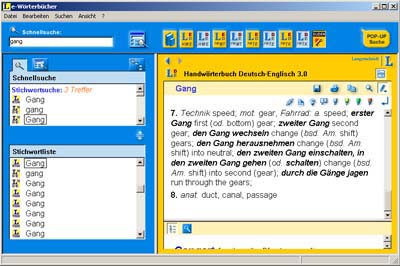 colleagues agree that they rarely reach for bound dictionaries anymore. It is so much quicker and easier to highlight a word and use a keyboard shortcut to paste it into an electronic dictionary interface.
Back when I still thought the ATA accreditation (now called ‘certification’) exam was worth taking I bought lots of bound dictionaries to bring with me to the exam. Now I rarely reach for a dictionary if I have it in electronic form or can easily look up a term on Google.
It is also so easy to work anywhere, because I can pop the translation on my laptop and use all my electronic dictionaries without having to schlepp my heavy dictionaries with me. That is one of the main reasons I stopped working for the FBI – having to drag all my dictionaries in with me (well, that and not being given access to the Internet). Now it isn’t a problem to head to a coffee shop or restaurant with WiFi or travel to Germany or my sister’s to babysit and not be at a disadvantage. I remember dragging dictionaries with me to several ATA conferences because I had some translations to finish before I could enjoy myself.
I love my Langenscheidt and UniLex interfaces. I have four dictionaries each installed on them and, after updating the UniLex and changing a setting under Options, am able to search all the dictionaries in the interface at once. My Langenscheidt dictionaries include the Handwörterbuch, Fachwörterbuch der Mikroelektronik, Fachwörterbuch Telekommunikation, and Peter Schmitt’s Fachwörterbuch der Technik und angewandte Wissenschaften (one of the best technical dictionaries out there). The UniLex interface allows me to quickly access to the Collins/Pons Unabridged German to English Dictionary, Ernst Wörterbuch der industriellen Technik (a good technical dictionary, which I also have in bound form), Brinkmann/Blaha Daten- und Kommunikationtechnik (Data Systems and Communication Technology) Dictionary, and Kucera Dictionary of Chemistry. I ordered the latest electronic version of the Großer Eichborn from UniLex yesterday. I am seriously considering buying the electronic version Dietl/Lorenz Dictionary of Legal, Commercial and Political Terms as well to make my life easier because it takes so long to pull the dictionary off the shelf next to me and find the word I need. Time is money and the more words you can translate an hour the more you earn!
If a term isn’t in any of the dictionaries in the one interface it is usually in the other. I also like to check both and compare all the suggestions in order to choose the most suitable one. I won’t entirely stop buying bound dictionaries, because a) some are still only available in hard copy and b) I am a dictionary addict and they look so great on the shelf. But if given the choice I will always choose the CD-ROM.
Favorite tools: Microsoft Office Compatibility Pack for Word, Excel, and PowerPoint 2007 file formats August 27, 2008
Posted by Jill (@bonnjill) in Business practices, Tools.2 comments
If you are anything like me, you are probably still using an older version of Microsoft Office. There could be any number of reasons for this. My reason is that it still works great and I have no desire to try to learn how to work with ribbons instead of menus. I’m holding out in the hope that the next Office version will go back to menus for some of us “old timers” (man, I realize my birthday is Friday, but typing this sentence just made me feel very, very old… It’s similar to the feeling I get during 80’s weekends on the radio when I realize that the music I grew up with and still love is now over twenty years old).
Some of my clients send me files with .docx extensions. Instead of asking them to convert it into a format that I can use (and admitting I’m using an older version of Word), I have downloaded the Microsoft Office Compatibility Pack. The Compatibility Pack allows you to “open, edit, and save documents, workbooks, and presentations in the file formats new to Microsoft Office Word, Excel, and PowerPoint 2007.” The system requirements are pretty broad. Your operating system should be either Windows 2000 Service Pack 4, Windows Server 2003, Windows Vista, Windows XP Service Pack 1, or Windows XP Service Pack 2. It works with a variety of Microsoft Office programs (click the link to see the list).
Wordreference adds new Oxford dictionaries August 15, 2008
Posted by Jill (@bonnjill) in Tools.3 comments
WordReference is a fun little site that offers free online translation dictionaries as well as tools/plug-ins/gadgets that offer easier access to the dictionaries. The most popular dictionaries are the Spanish Dictionary, French Dictionary and the Italian Dictionary. It also has a language forum for those pesky grammar questions for people who are too lazy/don’t want to look it up in the Chicago Manual of Style, the Associated Press’s Stylebook, Strunk and White’s Elements of Style, etc.
WordReference has just announced that it has added new Oxford dictionaries to its web site. Five dictionaries are available for free:
* English-Spanish
* English-French
* English-Italian
* English-German
* English Russian
Each of the Oxford dictionaries has around 100,000 words and phrases with over 200,000 translations.
For frequent WordReference users, four larger versions of the same dictionaries (except for Russian) are available on the site by subscription.


 Musings from an overworked translator