#ata53: Managing, Importing, and Exporting Bilingual Glossaries with UniLex November 8, 2012
Posted by Jill (@bonnjill) in ATA, Tech tips, Tools.4 comments
 I checked into the Hilton Bayside in San Diego on the Tuesday before the annual ATA conference to attend the above-named preconference seminar by Fabio Said (@fidusinterpres) on Wednesday morning. I like attending preconference seminars, because they allow you to really delve into the material in three hour increments. The conference sessions are usually around one hour and don’t allow that much detail. The preconference seminars went up in price this year, so I only attended one. That said, I was glad I chose Fabio’s presentation, because I can see how it will really benefit me in everyday practice.
To quote the abstract, “This hands-on seminar [showed us] how to use UniLex, a professional (and free) terminology management tool, to keep all your existing and future bilingual glossaries in a single application.” I was probably one of the only people in the room who had actually worked with the tool; however, I had never known that it could be use to manage my own glossaries. Having trained under terminologist extraordinaire Sue Ellen Wright at Kent State, after graduation I worked as a terminologist for six months at a translation agency in Germany and then off and on for them as needed for another six months. I am quite familiar with the process of creating glossaries for clients and for your own use.
Acolada’s UniLex is a German tool that allows you to look up terms and translations in a number of dictionaries within seconds. I have been using the professional version for years when I purchased German-English dictionaries such as the Collins/PONS German-English dictionary, Wahrig Wörterbuch der deutschen Sprache, Brinkmann/Blaha: Data Systems and Communications Dictionary, Ernst: Dictionary of Engineering and Technology, Dietl/Lorenz: Dictionary of Legal, Commercial and Political Terms, Kucera: Dictionary of Chemistry, der Große Eichborn, and several specialized Langenscheidt dictionaries, which are all available on UniLex Pro. It is a stand-alone tool, which does not allow you to copy a term in Word and look it up in the interface, but this makes it an ideal tool to manage your own glossaries as well. Both tools are free, but Fabio stressed several times that we should download and use the regular version, because the regular version allows you to edit the data.
Fabio discussed what the tool can and cannot do. Like I said, it does not integrate with Word or CAT tools. However, if you are a word geek you can really customize it to meet your needs, with spaces for part of speech, context and other details. You can import existing glossaries, add new entries to existing glossaries, and export the data into nice-looking RTF Word files. Not bad for a free tool…
I wrote about using electronic dictionaries back in 2008 and am using the screenshot of the UniLex interface from that post. Since I haven’t had a chance to install it on my new Windows 7 system it may or may not look a little different than in the screenshot below, which was taken from an XP system.
He then walked us through how to create a dictionary in UniLex and import a bilingual glossary (as an Excel file). One thing to remember is that “Key” is the source term and “Equivalents” is/are the target term(s). He also shared a sample Excel table to use for the process, which was organized in 8 columns. The Excel table should then be copied into Notepad or another text editor to ensure no hidden formatting is copied with the data into UniLex. The text file should then be saved using ANSI encoding to ensure any special characters are maintained; however, some systems may do better with UTF-8 encoding. You should test your system before importing large glossaries and editing existing dictionaries. The last step is to close UniLex and reopen it to view the contents of your dictionary.
I have downloaded the tool, but haven’t gotten around to playing with it on my own yet. I’ve been pretty busy dealing with the insurance company, running errands, and following up with the people I met at the conference. Oh yes, and translating. Can’t forget the day (and night) job. I do, however, look forward to playing with it once my life calms down (maybe after the holidays?). In summary, I am very happy I attended Fabio’s preconference seminar and look forward to becoming an amateur terminologist again. I’m curious to see if my old dictionaries and the glossaries I create from my Excel glossaries will be able to happily and smoothly co-exist.
The Big Sell March 26, 2012
Posted by Jill (@bonnjill) in Tools.3 comments
I thought it might be interesting to share the advertising mails I received for translation tools in the space of one week…
3/19/2012
E-mail advertising 30% off a workgroup license for DejaVu (unsubscribe option was in French – thank heavens for Google Translate)
3/20/2012
E-mail telling me Wordfast Pro 3.0 is coming soon
3/21/2012
E-mail offering 20% off SDL Trados Studio 2011 in honor of their 20th anniversary
3/22/2012
E-mail advertising a full license and upgrade to DejaVu on ProZ, an e-mail advertising 40% off memoQ translator pro, and an e-mail offering an upgrade for Translation Office 3000
This morning I was offered a free webinar on how to use TO3000 (tips and tricks). Ah the joys of unsolicited advertisements. I’ve deleted every single one of these e-mails, but I think I’ve decided to just consequently unsubscribe from each one I receive in the future. I’m perfectly happy working with MemoQ (and to a lesser degree Fluency). If I absolutely need Trados for a job I still have a licensed version on my laptop. As for Translation Office 3000… well, I gave up working with that program years ago because I found it to be too clunky and time-consuming. Maybe I should sign up for the free webinar after all…
Adventures with MemoQ September 22, 2011
Posted by Jill (@bonnjill) in Tech tips, Tools.17 comments
Greetings from Germany. I’m staying with friends north of Bonn in Bornheim at the moment. They are translators as well and have a network, which meant that this morning when I started translating a medical report for a client here in Bonn (who just happened to come out of the woodwork the day I arrived) my friend yelled down that she wasn’t able to use her Trados because I was using my Trados 2007. Their network was not happy that I was using Trados, even though they have a two-license set-up. I guess three licenses were too much for it.
No better time like the present to try to learn how to use my new MemoQ program. I was happy I had already installed it on my laptop, but I had never worked with it. I have to say it took me about a half an hour to figure everything out (without reading a manual). I learned how to confirm the fields pretty easily. I also managed to import my TM (which I had stored on Dropbox as a tmx) and work with my medical TM, allowing me to translate 1700 words today. I just exported the file to send to someone to proofread it. I have to say that the final product really looks good.
The client had sent me a terrible OCRed Word file, so I asked for a PDF of the hard copy and ran it through my OCR program and formatted it by hand (two of the five pages were fairly filled with complicated tables). MemoQ had absolutely no problems with my formatting and special characters. I think MemoQ has a new fan…
MemoQ group buy through ProZ.com August 19, 2011
Posted by Jill (@bonnjill) in Tech tips, Tools.1 comment so far
Happy Friday, everyone! I’ve delivered my translation, which is due at 2 PM, early and am about to head out to hit a local church tag sale and start my weekend. But I wanted to let you know about this opportunity to purchase memoQ 5.0 Pro through a translator group buying program on ProZ! During this group buy promotion, a group of 100 ProZ.com users will have the opportunity to purchase memoQ translator pro and receive a discount of 40% off the list price. Since I’ve been thinking about switching to MemoQ for a while and just started working with a new client who works with MemoQ (among other tools) I’ve just added my name to the list. There are only 39 units left (after my purchase), so act now. The software usually sells for $770/EUR 620, but they are offering it for $462/EUR 372 at the moment. Interested? Check out http://t.co/c0SVvv1. Have a great weekend!
10 Productivity Tips for the Mobile Translation Professional – Ana Iaria @ TCD May 24, 2011
Posted by Jill (@bonnjill) in ATA, Tech tips, Tools.4 comments
Translators truly are the epitome of mobile professionals. We can live and work from anywhere as long as we have a computer and an Internet connection. Ana frequently works on several continents a year, so her session on productivity tips for the mobile professional was chock full of tips to make working anywhere as easy and productive as possible.
Tip 1: Have a portable computer
There are various models, sizes and prices as netbooks or laptops. It is up to you to choose whichever computer you feel comfortable working on. Netbooks are not as easy to type on as laptops, but they can be quite handy if you are simply traveling and want to stay connected. Ana suggests a MacBookPro as a second computer, because then you can have both Windows and Mac. Be sure to install all the software you need to work on it (TEnTs, Office products, electronic dictionaries, etc.) – “don’t keep it as a bare-bones computer.”
Tip 2: Keeping time and time zones
Keeping track of the time zone you are in and the time zones of your clients is of paramount importance. Ana’s first suggestion was a time zone converter that does not rely on an Internet connection. Her favorite bookmark is World Clock, which also offers a iPhone app. Windows 7 also allows you to add an additional clock to your system. If you work with a Mac, she highly recommends using the VelaClock widget.
Tip 3: Gadgetry for your computer
* Flux is a screen dimmer that works with sunset/sunrise and changes the computer monitor to reduce glare on your eyes.
* If you work with Firefox there are all kinds of add-ons to make your life easier (drop-down dictionaries, add-ons like FoxClock, Xmarks, MultiRowBookmarks, etc.).
* Ana recommends buying what she calls a “bag of tricks”. It is an organizer called Grid-It that allows you to carry your external mouse, converters, cables, pen drives, etc.
Tip 4: Mobile communications
A smartphone is a must for a mobile professional. It allows you to check e-mail, use apps that make your life easier while traveling, and keep in touch with clients. If possible, get a SIM card for the country you are in so you can make and receive calls. A Skype number is also a very good solution. Someone during the presentation suggested using MagicJack to make inexpensive international calls in the United States and Canada.
Tip 5: Online storage and backup
Sync software is important to ensure your computer always has the files you need. Mac has a tool called Time Machine that allows you to sync your computers. Dropbox is another tool that allows you to easily move between computers or store files online for easy access. Adrive or Yousendit were other suggestions to store and share large files.
Tip 6: Working with WiFi
WiFi has revolutionized how we stay connected. Ana recommended several WiFi locators such as Fon (with which you buy a dongle and share WiFi with people all over the world who have offered to share their WiFi) or Total Hotspots. Another WiFi finder is Jiwire. Skype offers the Boingo network. Ana recommends scouting the WiFi spots before you leave for your destination and printing them out if necessary so you are prepared. Another option is to get a Starbucks card, which allows you to use WiFi at any Starbucks. If you are travelling in your country considering tethering your laptop to your mobile phone (be sure to check your contract first).
One word of warning though – be aware of open networks. If you are on an unsecured network don’t log into your bank’s website, for example. Also be sure you are running malware detection programs and anti-virus software on your computer at all times. You are as safe as you want to be.
Tip 7: If you are traveling for leisure
* Don’t overwork yourself
* Take some time off to visit places. Don’t hole yourself up in the hotel. Go out and see the sights and visit friends/family. (I am particularly guilty of this. I was translating a cookbook when visiting a friend in Munich. I worked during the day while he worked. I think I only took one day to be a tourist. Sure, I had already been to Munich several times, but that one afternoon off sitting in a café at the palace was very refreshing.)
* But always be available to your clients. Even if you are on vacation a short e-mail thanking them for the inquiry but explaining you are currently unavailable – and perhaps recommending a colleague – goes a long way to keep your customer happy.
Tip 8: If traveling for business/conferences
* Make the most of the conference
* If meeting clients, point out that you are working on the go, you can score a point or two.
* Don’t forget to network – and work
* Enjoy the social side of it as well
Tip 9: Don’t forget the productivity tools you use at home
* Have the same software on all computers – TEnTs, dictionaries, Office, any Open Source programs, etc.
* Olifant helps you create and maintain translation memories (TM) files (conversion, editing, etc.). Olifant is a .NET application that allows you to load or import translation memories in different formats (such as TMX or tab-delimited); edit the translation units, their attributes and any other associated data; and save or export your data in various formats.
* Apsis Xbench is an integrated reference tool aimed to provide a clear and structured view of the terminology of any translation project.
* Electronic dictionaries
* You can keep your reference files on your virtual drive folder
* Password manager or export
Tip 10: Check your list before going mobile
Ask yourself if you have your
* Computer
* Cell phone
* Storage
* WiFi finder
* Bag of tricks
10 Technology Tips You Can Start Using Today – Michael Wahlster @ TCD May 12, 2011
Posted by Jill (@bonnjill) in ATA, Tech tips, Tools.3 comments
Although I enjoyed all of the presentations I attended at the TCD conference in DC, Michael Wahlster’s presentation on technology tips was my favorite. As Corinne has already mentioned, he used a new presentation technique called zooming presentation through Prezi. He basically had one file and zoomed in and out to the various points he was making. It was quite impressive. Anyway, despite being a huge tech geek even I walked away with quite a few things I want to look into.
* VoIP (Voice over Internet Protocol)
He talked a lot about Skype. I already use Skype for video conference or working with colleagues to ask quick questions about particularly troublesome sentences in the Chat feature, but Skype offers so much more. Some Skype-enabled phones work like a cordless phone through a router. It also allows you to forward your calls to an overseas number or gives you worldwide dial-in phone numbers (so you can live in Kansas and have a phone number in Japan) and block phone spam. SkypeIn allows you to select your area code (almost anything, but if you want the cachet of the 212 Manhattan area code you’re out of luck). With Skype2Go you can call from your regular cell phone anywhere in the world, many countries for only 2.3 cents a minute.
Since the presentation, it was reported that Microsoft is going to purchase Skype for 8.5 billion dollars. This raises the question if Skype is going to survive in the long run as the largest telephony company in the world with all the advantages it has now. There is a tendency among big tech companies to buy niche companies, take their best technologies and let the rest die. But Skype, a Luxemburg-based company, has been there before when it was purchased by eBay. It was involved in a lawsuit with eBay and the auction house threatened to pull the plug on Skype. Skype survived. Perhaps very cautious optimism is called for.
Google Voice is also a good option, although it doesn’t offer as many benefits as Skype. One plus is that it allows you to flag a phone number as spam (great if you want to ignore calls from an ex or a particularly bothersome client who won’t take no for an answer). Once the number is flagged you no longer have to see when the person calls.
* DNS (domain name service)
If you have had problems connecting to the Internet it may be your ISP’s domain name service, so Michael suggested we look into OpenDNS. It is faster and more reliable than most ISP’s. It makes your network more secure and reliable. Using OpenDNS means you enter their IP address is in your router or your network setup – not the one assigned to you by your ISP. It offers Web content filtering, so it is good for parents who want to filter their children’s access to content. It’s not an Internet service – it’s a IP translation service.
* Encryption
Encryption allows you to protect your own data assets, protect e-mail attachments and most importantly protect client confidentiality. With encryption you can make all or part of your hard drive invisible. Michael stressed that laptops must be encrypted, because they can walk away so easily. “Storing data in the cloud without encryption is like storing your suitcase in a locker in the airport without turning the key.” Encryption ensures that your data is secure. He recommends Truecrypt, which offers on-the-fly encryption and “plausible deniability” (for the advanced paranoid, if you want to protect data even in cases where you may be forced to reveal your password).
* Passwords
Michael suggests we use a password manager to keep track of all the various passwords we create for various websites. Passwords should always be at least 12 characters (using capital and lowercase letters, symbols instead of letters, special characters, etc.). You should create a strong passphrase for the password manager that only you know. Michael’s example was the common Latin phrase Gallia est omnis divisa in partes tres, which he shortened to Ge0d!p3 (using the number zero for the o and the ! for the i). Keepass is the tool he recommends. Keepass is a “free, open source, light-weight and easy-to-use password manager.” It stores all your passwords together and all you have to do is remember your one passphrase. He also urged us not to write down our passwords and not use personal information like birthdays, spouse or pet names, etc.
* Sharing + Collaboration
Most of us collaborate with each other and storing the files on the cloud can make life a lot simpler. Dropbox is the tool Michael (and I) recommend. Dropbox is a folder system that stores your data online (in “the cloud”). I use Dropbox to move files and folders between my desktop PC and my laptops. Michael suggested storing files such as your music and photos so you can use it at any computer. I export my TMs to Dropbox as a back-up beyond my data back-up system (more on that later). You can also use Dropbox to share files with colleagues and ensure everyone is using the latest version. If someone is using the file in the Dropbox folder the file is locked. The first 2 GB is free; anything over and above that you pay for. The nice thing about Dropbox is you can drag and drop files to the Dropbox folder. I also have Dropbox installed on my smartphone.
* Note Taking
You can use note taking software tools to save text, links, URLs, images, sounds, etc. No more Post-it notes littering your monitor screen or desk. Michael recommended Evernote (60 MB per month limit for the free version), but MS OneNote comes standard on most computers nowadays. The thing that intrigues me about Evernote is you can also sync it with your smartphone.
* Text Editors
Text editors go beyond the capacity of Notepad. They allow you to open plain text files and the formatting and tags are usually highlighted in another color (useful when you are handcoding or translating HTML files). Michael uses Notepad++. I like using UltraEdit.
* Uninterrupted Power Supply (not just battery back-up)
This is probably one of the most important tech tips you should know about. It is extremely important to have an uninterrupted power supply in case the power goes out, because a UPS allows you to back up the files you are working on and close the computer down in the event of a power outage. Battery back-ups take a split-second to switch over, which is usually not long enough for a computer. This avoids loss of the files you are working on. Michael suggested you buy as large a UPS as possible. I just bought replacement batteries for my UPSes the week before the conference. They are important!
* Data Backup
It is important to back up your data both to an external hard drive and to “the cloud” (aka the Internet). Backing up your data off-site is important in case there is a robbery (they will most likely steal your hard drive as well), fire, flood or other natural disaster. The two most trusted back-up systems are Carbonite and Mozy. You should remember to back up your files for your clients and don’t forget critical files like your TMs or other work products. I wrote a detailed post here about the importance of data backup back in January.
* Infections
Every translator should have an anti-virus program and malware/spyware removal programs running on their computer. I use a combination of AdAware and Spybot Search & Destroy. If your computer is running slowly the first thing you should do is run some malware/spyware removal programs on it. I also really like CCleaner to make my computer run faster and more efficiently. Michael talked about ComboFix, but urged us to be very careful when using it because it finds amazing things but erases everything suspicious (his quote was RTFM!).
Duden Online May 6, 2011
Posted by Jill (@bonnjill) in Tools, Translation Sites.6 comments
German translators, rejoice! Since early May Duden has put its Duden Rechtschreibung and Deutsches Universalwörterbuch online for us to use – free of charge at www.duden.de. If you want to look up a word, check its correct spelling, or learn more about its meaning or etymology the Duden is the reference work of choice. It is one of Germany’s most respected line of grammar books. The Duden was first published by Konrad Duden in 1880. The Duden is updated regularly, with new editions appearing every four or five years. It is currently in its 25th edition and published in 12 volumes, covering different aspects of grammar like spelling, foreign words, pronunciation, synonyms, quotes and idioms (those are just the volumes I own).
Favorite tools: Search and Replace April 20, 2011
Posted by Jill (@bonnjill) in Tech tips, Tools.2 comments
One of my German friends/colleagues complained on Facebook yesterday that she was proofreading files and the translator had changed Vereinigtes Königreich (United Kingdom) to Groß Britannien (Great Britain – but spelled wrong, because it should be Großbritannien). If it was just one file it wouldn’t have been a problem to correct it, but the problem here was that the translator had changed it in 148 separate files.
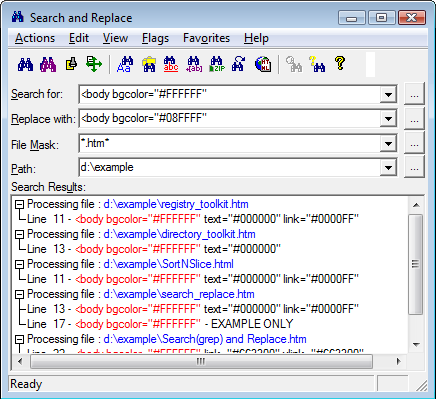
Screenshot taken from the Funduc website
There’s a shareware tool for that! Search and Replace by Funduc Software is a great little tool that can easily fix this problem. It “searches through one or more files files for a string and can also replace that ‘search hit’ with another string. It can even search for the string inside .ZIP files, which can be a handy feature to have. Search and Replace is also available in international versions. As they explain on the Funduc website, “Language interface downloads are available below for German, Danish, Dutch, French, Italian, Portuguese, and Spanish versions. Some older Japanese, Greek, Norwegian, and Swedish modules are also available.” You can also write support@funduc.com if you need an older language dll that is not listed. You simply install the English version and then add the language support files into the Search and Replace program directory.
This is a must-have tool for translators. I can’t tell you how many times I have relied on this tool. Search and Replace costs $25.00, Replace Studio Pro costs $30.00 and Replace Studio Business Edition costs $37.00. I have been perfectly happy with Search and Replace for years now. Windows XP, Windows 2003, Windows Vista, and Windows 7. 32-bit and x64 versions are available for all three tools.
What complimentary copy of SDL Trados Studio 2009? January 19, 2011
Posted by Jill (@bonnjill) in Tools.9 comments
I received the following e-mail this morning:
In August 2010, we gave you a complimentary copy of SDL Trados Studio 2009 Starter Edition for 6 months (valid until 31/01/2011).
We thought this would be a great opportunity for you to start working on SDL Trados Studio 2009 projects and give you an insight into the new revolutionary translation environment.
As your complimentary copy is due to expire, we’d like to remind you of the different options available to enable you to continue working with SDL Trados Studio:
Uh, what? Really? That’s news to me!
I am still working with Trados 2007. I don’t know what SDL is talking about. Had I known I had a complimentary copy of Studio 2009 I think I might have been working with it already (something which I have no intention of doing)…


 Musings from an overworked translator