Cuil apparently no threat to Google July 29, 2008
Posted by Jill (@bonnjill) in Tools.1 comment so far
Well, the initial verdicts are in and they are tepid at best. As Time Magazine reports in Why Cuil is No Threat to Google, “the new site poses little immediate threat to industry leader Google, or even its nearest competitors, Yahoo and Microsoft, in either relevance or breadth of results it delivers.” Interest in the new search engine crashed the server on Monday, but “even when it was working, the results were fair, at best.” Hopefully Cuil will survive because I really like the idea of a search engine not storing data on its users and the queries they make, but they will definitely have to do a better job at providing relevant search results. I use Google because it delivers accurate search results and saves me a lot of time. It looks like I will be continuing to do so.
Announcing a new search engine: Cuil July 28, 2008
Posted by Jill (@bonnjill) in Random musings, Tools.6 comments
There’s a new search engine that is about to give Google a run for its money. Cuil (pronounced “Cool”), which was developed by husband-and-wife team Tom Costello and Anna Patterson, a search-engine researcher from Stanford University and a former Google employee, aims to rank the relevance of search results by content analysis rather than by popularity. Google, on the other hand, treats Web links as popular votes in weighing Web page relevance for a given query.
The founders of Cuil boast that it indexes 120 billion Web pages, “three times more than any other search engine.” Google, in response, announced on Monday that it now indexes 1 trillion URLs, though not all of them lead to unique Web pages. Says Patterson, “Our team approaches search differently. By leveraging our expertise in search architecture and relevance methods, we’ve built a more efficient yet richer search engine from the ground up. The Internet has grown and we think it’s time search did, too.”
Most importantly, Cuil promises privacy. “There’s a separation between search and surveillance. Whereas Google records information about its users and their searches to improve the user experience and to deliver more relevant search results and ads, Cuil remembers nothing.”
It still has a few bugs to iron out, but I’m confident they will be able to do so soon. Now we just have to see if it can go up against the 800,000 lb. gorilla and survive. I know I for one plan on giving it a try tomorrow. ..
Internet search tips July 13, 2008
Posted by Jill (@bonnjill) in Tools, Translation Sites.2 comments
Every translator should be adept at using the Internet. I consider the Internet to be one of my most valuable tools. I use it to search for parallel texts and elusive terms as well as keep up with the latest news and changes in my fields of interest. I also use it to verify facts, locate places of business, schedule my day, etc. In fact, I resigned from the FBI because my supervisor would not authorize access to the Internet. I never realized how reliant I am on the Internet until I was unable to use it to do my job.
There is no right or wrong way to search the Internet. If you find what you need and find it quickly, you can consider your method to be successful. However, you also need to make sure that what you have found is really the correct answer, is the best answer, and is the complete answer.
The following list provides a guideline for you to follow in formulating search requests, viewing search results, and modifying search results. These procedures can be followed for virtually any search request, from the simplest to the most complicated. For some search requests, you may not want or need to go through a formal search strategy; however, it’s a good idea to follow a strategy. Following the 10 steps will also ensure good results if your search is multifaceted and you want to get the most relevant results.
- Identify the important concepts of your search and rely on built-in relevance rankings provided by search engines.
- Choose the keywords that describe these concepts.
- Determine whether there are synonyms, related terms, or other variations of the keywords that should be included.
- Determine which search features may apply, including truncation, proximity operators, Boolean operators, and so forth.
- Choose a search engine.
- Read the search instructions on the search engine’s home page. Look for sections entitled “Help,” “Advanced Search,” “Frequently Asked Questions,” etc.
- Create a search expression using syntax that is appropriate for the search engine.
- Evaluate the results. How many hits were returned? Were the results relevant to your query?
- Modify your search if needed. Go back to Steps 2 through 4 and revise your query accordingly.
- Try the same search in a different search engine, following Steps 5 through 9 above. You may also want to try using a meta search engine that searches several search engines at once.
If you feel that your search has yielded too few Web pages, there are several things to consider:
- Perhaps the search expression was too specific. Go back and remove some terms that are connected by ANDs.
- Perhaps there are more terms to use. Think of more synonyms to “OR” together. Try truncating more words if possible.
- Check spelling and syntax (a forgotten quotation mark or a missing parentheses)
- Read the instructions on the help pages again.
If your search has given you too many results and many are unrelated to your topic, consider the following:
- Narrow your search to specific fields, if possible.
- Use more specific terms (for example, instead of cancer, use the specific type of cancer in which you’re interested).
- Use quotation marks to indicate phrases when a phrase more exactly defines your concepts (for example, “quality criteria” will be more specific than quality criteria, which could occur in different places on the page).
- Add additional terms with AND or NOT (or + and -).
- Remove some synonyms if possible.
One important final step that should never be brushed off is verifying the term by assessing the quality of the content.
- Consider the source (who is the organization behind the site? is it from an established news source, government, journal article, etc. or does the group have a bias that might influence the words they choose?)
- Look at the quality of the site (if there are spelling and grammatical errors you might assume that the same level of attention to detail probably went into the gathering of the content).
- Are the site and the contents current?
- Verify using multiple sources – is the term you have found used on other English language web sites?
Verifying is probably the most important step in the process. Some web sites are poorly translated, so your term may be a false friend or an incorrect translation that has been picked up by other sites. One example is the use of Imprint for Impressum on German web site translations. An imprint is used in the publishing world, but it is completely inappropriate for web sites. This has been the subject of numerous discussions on the various listservs I belong to. Some more suitable suggestions include Credits, Legal information, Corporate Information, Legal Disclaimer, Contact Details, Contact Details/Disclaimer, About This Site or even The Boring Stuff (depending on level of informality of the site). Anything but Imprint, but I digress…
Another technique that I find to be invaluable is to put portions of a sentence in quotations in the search field or using a term that is used in the same sentence with the German word. By searching for [German term] lasers 3:2, I was able to find a term that used the word “ratio” for another colleague who had spent several fruitless hours trying to find the term (I wish I could remember the specifics). And by searching for “sick days taken by employees” or “not work on Saturdays” you might stumble on a document that is similar (or identical) to the one you are translating. You can use the results to see how other people phrase things, which can be a terminological goldmine for the rest of your text.
By using these simple techniques and honing your search process you too can become a search champion. If you have an hour to kill, you might want to check out my streaming video presentation on Internet Research Skills, which was filmed in March 2006 at the University of Gainesville (disclaimer: I was talking to an empty room, so please ignore the awkwardness). If it doesn’t open in FireFox try opening it in Internet Explorer.
Favorite tools: WorkPace July 8, 2008
Posted by Jill (@bonnjill) in Random musings, Tools.1 comment so far
If you are anything like me, you are passionate about translation and can become fixated on what is displayed on your computer screen, forgetting everything around you. I can work for several hours without taking a break and have been known to forget to eat or even move. I first heard about WorkPace® (or a program very similar to it) when I lived in Germany in the late 1990s. I kept telling myself I should download it, but never got around to it. I have always been concerned about ergonomics (as demonstrated by my ergonomic German keyboard with integrated touchpad, which no one but me enjoys working on. I love it so much I moved both keyboards—work and home—with me when I relocated back to the U.S. in 2001), so I eventually got around to downloading the 1-month trial version. I bought a license before the trial was even up.
WorkPace® is a breaks and exercise software tool proven to help prevent, and aid recovery from, Repetitive Strain Injury (also known as RSI, OOS and Carpal Tunnel Syndrome). The software provides an integrated health and safety solution for computer users, with break, stretch and exercise reminders, ergonomic training, monitoring of discomfort levels, and statistics on computer use. In short, it is a holistic tool that rocks.

WorkPace® monitors your keystrokes and offers break reminders that include stretches and exercises you can do in front of your computer to “reinvigorate your body and mind.” The more intensely you work, the more “microbreaks” (8-second pauses in your typing) will be displayed. However, you can change the settings to fit your needs. For example, you can turn it off if you decide you need to concentrate. It took a while to adjust to these microbreaks and especially the breaks. I eventually turned the microbreaks off completely, but still try to adhere to the breaks. Otherwise the program will chastise me and display a “frownie face” in the toolbar.
The first day I used the program I was under a lot of stress to get a legal translation of the German Cosmetics Ordinance finished, but I complied with most of the breaks and found my stress level wasn’t as high as it could have been. I never realized how badly I need to stretch and am reminded each time I perform a stretch and hear my back crack or feel the muscle stretch and loosen.
It is available in two editions, Personal and Professional. WorkPace Personal is designed for individual users, so it is perfect for the translator sitting in his or her home office. WorkPace currently supports English, Dutch, Spanish, Swedish, Norwegian and Portuguese (Note: All languages supported are automatically included with each software product. When you download and install the product, all languages are then available. Each user can choose their own language preferences from the Preferences / Language menu in WorkPace). The license for WorkPace Personal costs $49.00.
Favorite tools: EditPlus July 1, 2008
Posted by Jill (@bonnjill) in Tools, Translation Sites.add a comment
EditPlus is a 32-bit text editor, HTML editor and programmer tool for the Windows operating system. While it can serve as a good Notepad replacement, it also offers many powerful features for Web page authors and programmers. I particularly like the fact that it color codes the tags, so there is no confusion when you are working in an HTML or XML file. Other features include an HTML toolbar, user tools, line number, ruler, URL highlighting, auto-completion, cliptext, column selection, powerful search and replace, multiple undo/redo, spell checker, customizable keyboard shortcuts, and more.

EditPlus is shareware. You can download it and try it for 30 days. If you find it useful and decide to keep using EditPlus after the evaluation period has expired, you must buy a license. A single user license is only $35, but you can download it and try it for 30 days.
One particular feature that I think most translators will appreciate is its tag stripping feature. I am translating a highly formatted quality management manual in TagEditor at the moment. To track how many words I have translated that day, I simply copy the text from the English View tab and paste it into EditPlus. To strip the tags, I select View->HTML->Strip HTML tags. I can then copy and paste that text into Word and do a quick word count.
Going the way of the dodo bird: the fax machine June 29, 2008
Posted by Jill (@bonnjill) in Business practices, Random musings, Tools.3 comments
I bought a plain paper fax machine this weekend at a garage sale for $3. I had bought a thermal paper fax at a garage sale when I moved back to the U.S. in 2001 for $20, so I definitely felt like I got a real bargain. But then I got to thinking about how many faxes I get a month and wondered if I could have spent the $3 on something useful — like a latte. However, my free eFax number is limited to receive 20 pages a month and an attorney had sent me 11 pages on Thursday, so it was on my mind. I hadn’t received a fax for several months before that.
I basically just used the thermal paper fax machine to occasionally send faxes that required my signature (to my bank, non-disclosure agreements to agencies, etc.). Since I receive so few faxes, paying for eFax service simply doesn’t make sense. I never used my fax machine to receive faxes, because the thermal paper fades so quickly and so thoroughly. Faxes from five or six years ago are completely illegible now (I just went through some old binders and ended up shredding/recycling a lot of old translations, paperwork, bank statements, correspondence, etc.).
We should always maintain the tools of the trade, but is a fax machine really necessary anymore? With scanners and eFax and PDFs, fax machines are slowly going the way of the dodo bird. I keep mine unplugged to save electricity and only plug it in when I need to send something (I find the process of scanning a document to be too slow sometimes). Any thoughts? Do you have tools that you use to send/receive faxes?
Favorite tools: WeatherBug June 26, 2008
Posted by Jill (@bonnjill) in Fun stuff, Random musings, Tools.2 comments
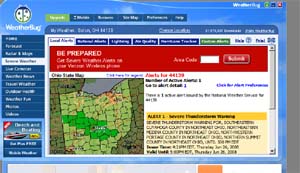
One of my favorite non-translation tools is WeatherBug. It’s a tiny, free (ad-based) tool that resides in the tray of your computer and monitors your weather using the tracking station nearest you from among its 8000 tracking stations. When you first set it up you have to enter your zip code. It features live local weather conditions, forecasts, and life saving, severe weather alerts. WeatherBug’s application has also come pre-installed on HP and Compaq computers and Logitech peripherals, but you can also download it onto your computer for free using the above link. It can also be used on mobile phones. To date, WeatherBug has registered over 65 million users for the free WeatherBug product and has become one of the largest news and information sites on the Internet.
I like WeatherBug for two reasons: first of all, because it tells me how hot or cold it is without my having to look through an iced-over window at the thermometer outside and secondly (and most importantly) because it alerts me when a severe storm is coming. This way I can power the computer down if it is going to be a bad storm with lots of lightning (I’ve already experienced one fried modem due to a direct hit from a lightning storm and don’t want to jeopardize my computer, which is the lifeblood of my profession). But I suppose it could also be invaluable if there were a tornado alert and I wasn’t able to hear the siren a block away. Luckily I haven’t experienced that yet.
Usually, the WeatherBug features shows the temperature and looks like this:  . When an alert is issued, the temperature turns into a bug that looks like this:
 and starts chattering like a cicada. By double-clicking on the alert I can read the alert and decide what to do. In this case, there is a severe thunderstorm warning for my area until 5 PM. In fact, I just heard the first clap of thunder…
Some other online German-English dictionaries June 20, 2008
Posted by Jill (@bonnjill) in Tools, Translation Sites.3 comments
In addition to Leo and dict.cc, I sometimes use FreeDic.net, TU Chemnitz’s BEOLINGUS, Grimms Deutsches Wörterbuch, the Digitale Wörterbuch der deutschen Sprache des 20. Jahrhunderts, the University of Leipzig’s Wortschatz, and the dictionaries at wissen.de (which I’ve created a TinyURL for).
And of course no translator’s browser toolbar should be without a link to Refdesk.com or Webster’s Online Dictionary. This is just the tip of my Bookmarks iceberg, but they are the ones I use most frequently. What are your favorite online dictionaries?
You don’t know what you’ve got ’til it’s gone June 20, 2008
Posted by Jill (@bonnjill) in Random musings, Tools, Translation Sites.1 comment so far
Whew, that was a bit nerve-wracking… Leo, a much-loved, online German-English/German-French/German-Spanish/German-Chinese dictionary disappeared for a while yesterday. When I tried to call it up yesterday it took forever to load and then displayed “page not found.” Luckily I still also use my electronic dictionaries from Acolada UniLex (which includes my beloved Pons/Collins Unabridged general dictionary, Brinkmann/Blaha Wörterbuch der Datenkommunikation, Ernst Wörterbuch der industriellen Technik, and Kucera Wörterbuch der Chemie) and Langenscheidt (which truly unites the Handwörterbuch, Fachwörterbuch Mikroelektronik, Fachwörterbuch Telekommunikation, and Peter Schmitts Fachwörterbuch Technik und angewandte Wissenschaften as well as the Duden Rechtschreibung in one interface-which is *really convenient*), so it wasn’t that big of a deal. However, I did get nervous when someone wrote to PT late last night asking where it went and someone responded that it had transformed into Leo-Pro, which had transformed into Slicktionary, which had then been swallowed up by dict.cc. What a frightening thought. I would hope if something like that would happen they would let us know ahead of time.
Leo may not always be the most accurate solution (and some of its terms can be downright wrong), but it often has suggestions that go beyond the scope of my dictionaries and hit the nail on the head. It is especially helpful with obscure business terms and slang words, which I encounter a lot in my marketing surveys (not to mention bad grammar, typos, garbled special characters, etc., but I digress…) A good translator generally doesn’t and shouldn’t depend on dictionaries to perform their job, but they can come in handy when you are stuck trying to come up with the perfect word. And you really have to have a good command of a language to recognize when a suggested term is in no way suitable.
Luckily it was back up again when I woke up this morning. There were a lot of people sweating bullets yesterday… Welcome back, Leo!
Word count issues – Part II June 18, 2008
Posted by Jill (@bonnjill) in Business practices, Tools.4 comments
Disclaimer: For all those of you who already aware of this issue, bear with me, because this is for those who are not as familiar with word counts. Also, since I am a German translator, I am not at all familiar with how to count languages such as Japanese, Hebrew, etc. If you work in one of these languages, I suggest you ask some of your colleagues what they use.
Counting words, characters, and/or lines is a crucial subject for all freelance translators, because it is the foundation for pricing our translations, issuing invoices to clients, and getting paid. However, if you have been relying exclusively on the Word Count feature in Microsoft Word to invoice your clients, you may have been invoicing for a much lower word count than you actually translated. Different word processing programs and translation tools often produce different word count values for the same document. Sometimes those differences can be quite drastic. They are due to the use of different rules for counting as well as deficiencies in the applications themselves.
If you have been using the Word Count feature in Microsoft Word to invoice your clients, you have been short-changing yourself. The reason for this is that Microsoft Word does not count comments, headers, footers, embedded objects and files, and—most importantly—text boxes. If a file has been run through an Optical Character Recognition program, these programs tend to create a lot of text boxes. Word does not count the words in text boxes, and yet you definitely have to translate them.
The same problem exists with Excel and PowerPoint. One of my clients once sent me a PowerPoint presentation to translate and quoted me a word count of 2,000 words. By the end of the day I was nowhere close to being finished. After a quick count using PractiCount I discovered that the actual word count was more like 6,000 words because the client had not counted the embedded Excel spreadsheets. I wrote the client and explained why I would not be meeting the one-day deadline, and the client agreed to give me two extra days to work on it.
PowerPoint also does not offer character counts, which means translators in languages that rely on character counts should consider using a third party counting tool for this reason.
There is also a problem with version consistency. Every version of Word, PowerPoint, etc. has different rules regarding words and word count. PowerPoint 97 and 2000 are not consistent with the Word counting rules. For example, they count hyphenated words as two words. Fortunately (or perhaps unfortunately for us?) PowerPoint XP corrects this difference. In plain text, this means that two different users with different PowerPoint versions may disagree about the word count on the same document. So if your client contests your word count, the reason may be because the client is using a different version of Word, PowerPoint, etc. I for one am still using Word 2002 and see no reason to upgrade to Word 2007, because I am happy (and, most importantly, intimately familiar) with the 2002 version. I know I am not alone.
In our comparison of counting tools (see What’s in a Word?, ATA Chronicle, August 2006), PractiCount and Total Assistant came out the clear winners. PractiCount ($59.95 for the standard edition) is easy to use due to its tabbed interface and adjustable settings, and it can also generate invoices. PractiCount can count footers, headers, text boxes, inserted Excel and PowerPoint documents, comments, WordArt and more. Total Assistant ($24.95 for the standard version, $44.95 for the professional version) can produce a word count of multiple files in just two steps and counts unfriendly formats such as PowerPoint and Adobe Acrobat. Total Assistant is a more basic but also cheaper program than PractiCount. Total Assistant Pro also adds invoice generation and other reports.
Some of the available word count tools are AnyCount (which comes with Translation Office 3000 or can be purchased as a stand-alone tool), TextCount, and FreeBudget. Marita and I recommend downloading the various free trial versions and deciding which one you prefer and best suits your needs.
I’m sure there are many more tools out there, and if you work with a different tool, feel free to tell us about it in the comments. As I’ve said, I can only talk about the ones I have worked with in the past.


 Musings from an overworked translator